Docs /
Licence & API keys: YouTube and Vimeo
Enter your CodeFlavors licence key and connect the YouTube Data API and Vimeo so VideographyWP can pull high-resolution thumbnails, titles and descriptions.
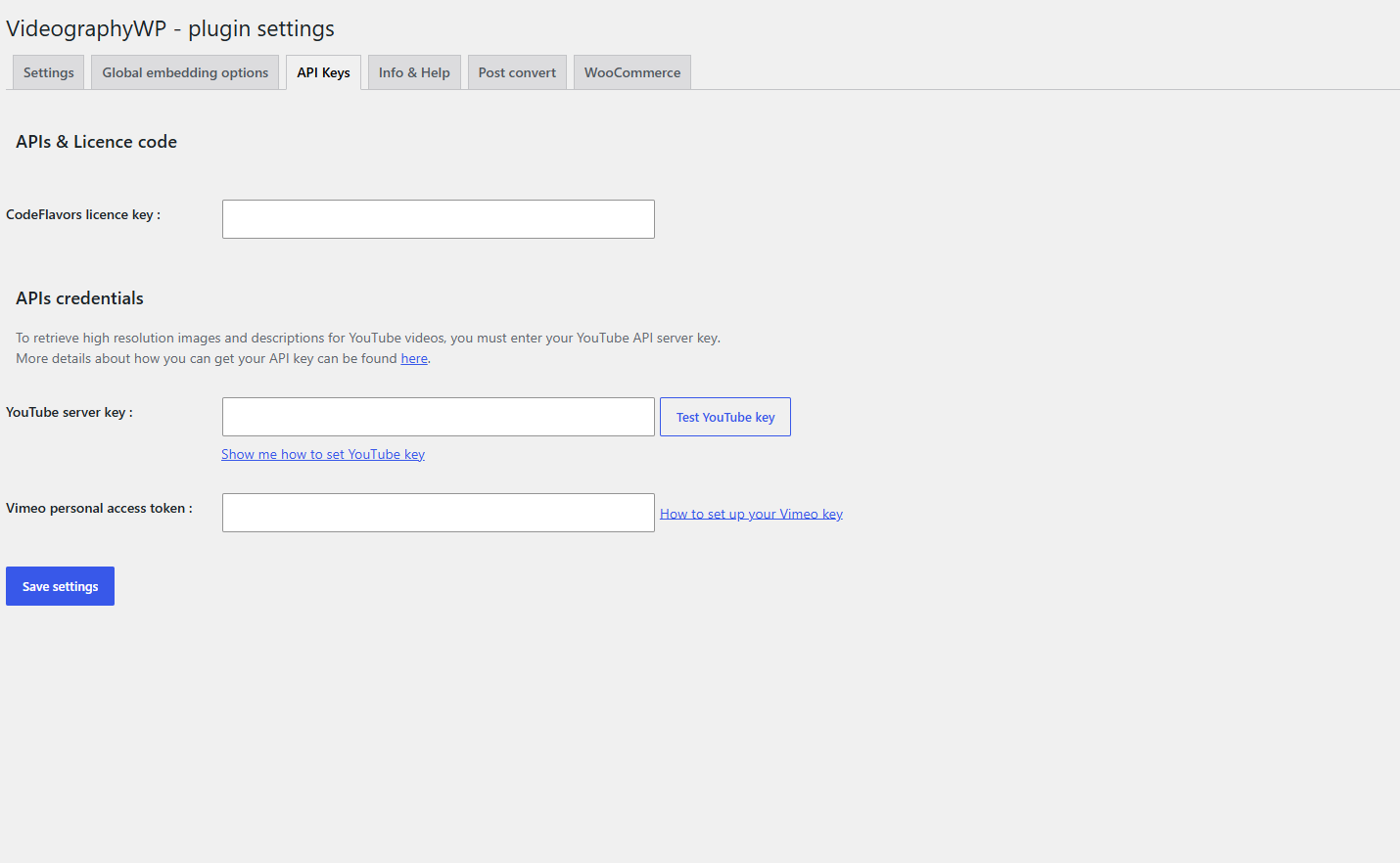
Open Settings → VideographyWP → API Keys. This tab holds three fields: your licence key, the YouTube server key and the Vimeo personal access token.
CodeFlavors licence key
Paste the licence key from your CodeFlavors account into CodeFlavors licence key and save. This activates PRO features, automatic updates and support.
YouTube Data API key
A YouTube key lets the plugin retrieve high-resolution images and full descriptions for YouTube videos. Without it, imports still work but use a low-resolution thumbnail and no description.
- Open the Google Cloud Console and create (or select) a project.
- Enable the YouTube Data API v3.
- Go to Credentials → Create credentials → API key and copy the key.
- Paste it into YouTube server key and click Test YouTube key to confirm it works.
Vimeo personal access token
- Go to developer.vimeo.com/apps and create an app.
- Under Authentication, generate a personal access token with read scopes for your videos.
- Paste it into Vimeo personal access token and save.
The token enables Vimeo videos, including private and domain-restricted ones.