Docs /
Importing videos
Paste a YouTube, Vimeo or Dailymotion URL and let VideographyWP fetch the title, description, thumbnail and date — then fine-tune how the video plays.
Attach a video
- Create or edit a post, page or product.
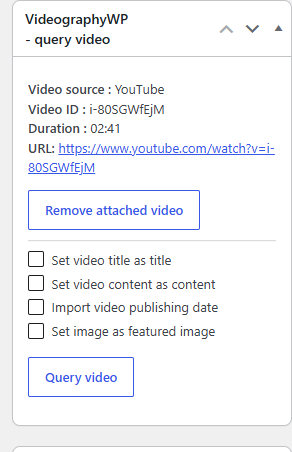
- Find the VideographyWP – query video box in the editor sidebar and paste a YouTube, Vimeo or Dailymotion URL.
- Click Query video. The plugin reads the video source, video ID and duration and shows a preview.
Choose what to import
Before or after querying, tick what you want the plugin to copy from the video into your post:
- Set video title as title — use the video’s title as the post title.
- Set video content as content — insert the video description into the post body.
- Import video publishing date — match the post date to the video’s.
- Set image as featured image — save the video thumbnail as the post’s featured image.
Use Remove attached video to detach a video from the post.
Fine-tune how the video plays
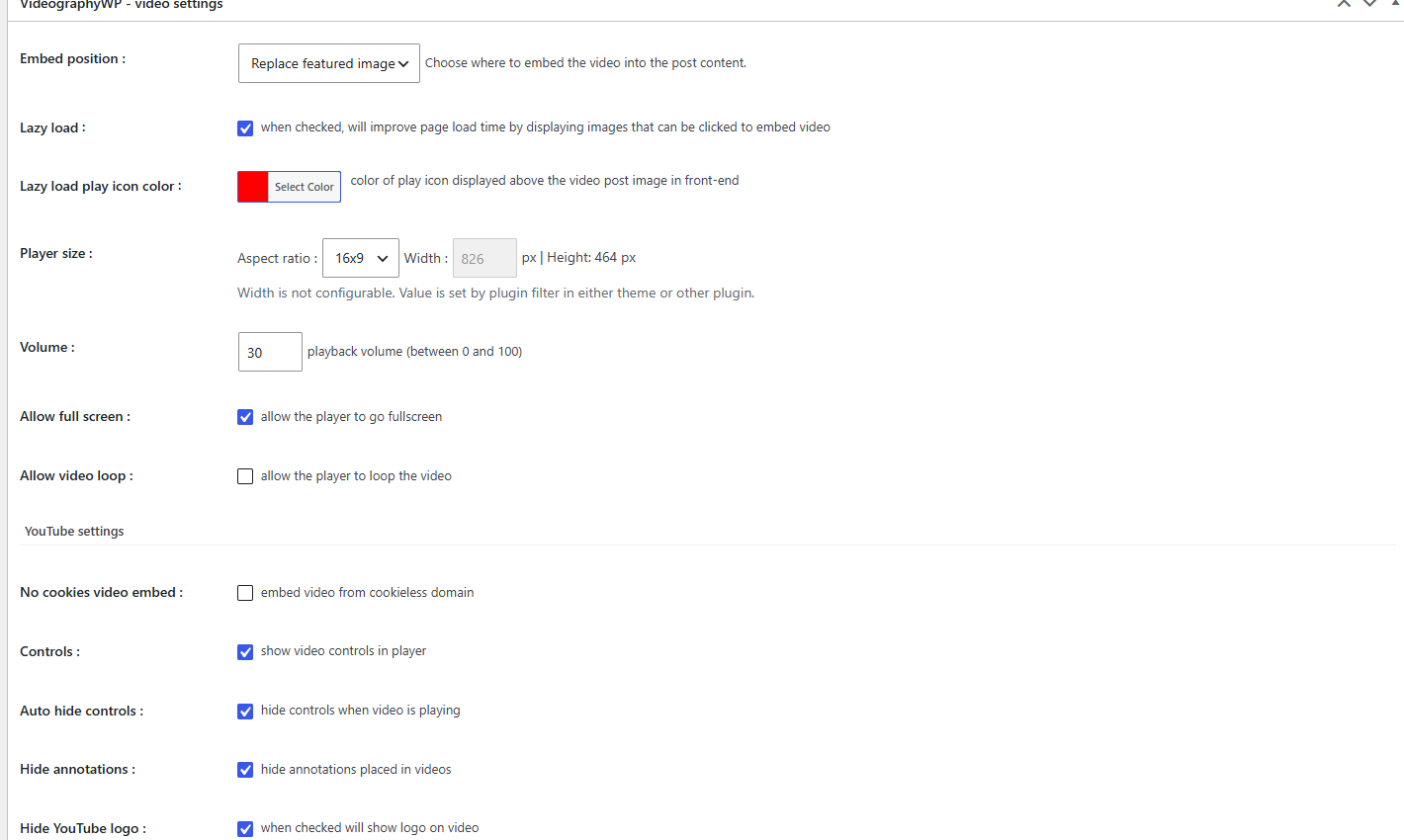
Each video has its own video settings box, so you can control playback per post:
- Embed position — where the video goes in the content (for example, Replace featured image).
- Lazy load — show a clickable thumbnail first to keep pages fast, with a configurable play-icon colour.
- Player size — aspect ratio (16:9 by default); width is set by your theme, height is calculated for you.
- Volume (0–100), Allow full screen and Allow video loop.
- YouTube settings — no-cookies (privacy) embed, show controls, auto-hide controls, hide annotations and hide the YouTube logo.
Supported sources
- YouTube — videos, Shorts and playlists.
- Vimeo — public videos, plus private videos via a personal access token.
- Dailymotion — public videos.