Docs /
Add video to the WooCommerce product gallery
Add a YouTube, Vimeo or Dailymotion video inside your WooCommerce product gallery — without replacing your images. A VideographyWP PRO feature.
Add the video
- Edit a WooCommerce product.
- In the VideographyWP box, paste the video URL and click Query video.
WooCommerce product video settings
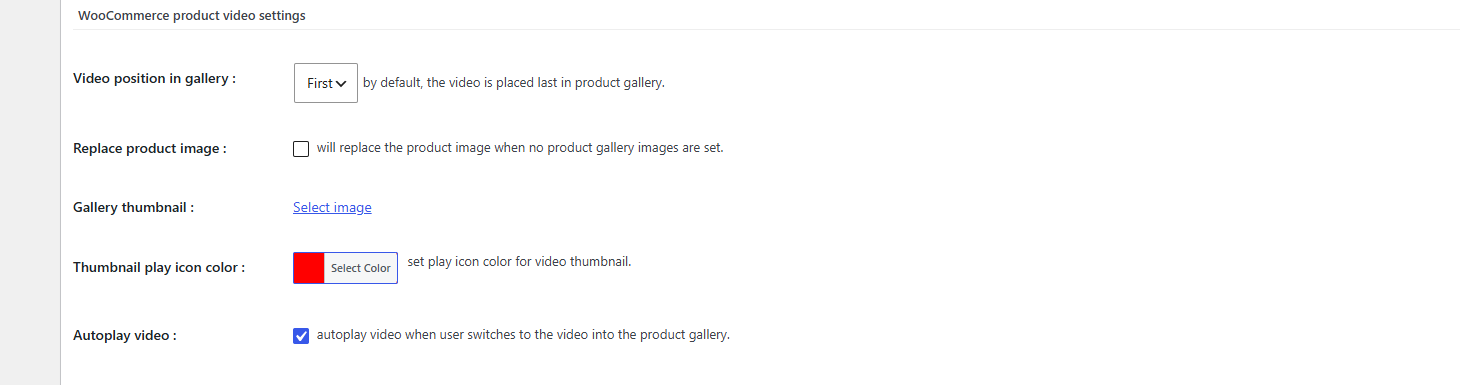
Open the WooCommerce product video settings panel on the product and configure:
- Video position in gallery — First or Last. By default the video is placed last in the gallery.
- Replace product image — show the video in place of the main image when the product has no gallery images.
- Gallery thumbnail — pick a custom thumbnail image for the video tile (Select image).
- Thumbnail play icon colour — set the colour of the play badge shown on the video tile.
- Autoplay video — start playback the moment a shopper switches to the video in the gallery.
What shoppers see
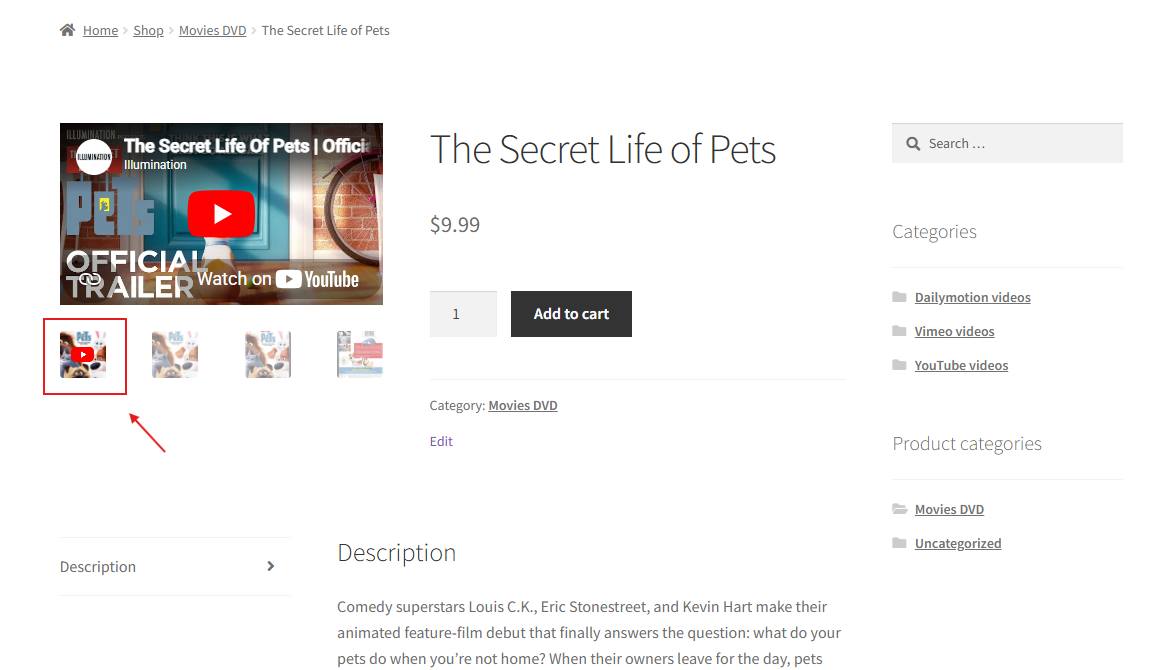
Update the product. The video appears as a thumbnail in the gallery strip (with a play icon) and plays inline when selected — your product images, zoom and lightbox keep working untouched.
It works out-of-the-box with the default WooCommerce gallery, and ships dedicated support for 20+ premium themes. See the full WooCommerce product video overview or browse compatible themes.